SAP System Administration is to monitor SAP Lock Entries. It often happens in your SAP System that when your users run transaction codes and their terminal are abnormally disconnected, these situation could cause Lock Entries that could disturb any other active users doing process. Sometimes lock entries could affect your SAP performance as it blocks other users' processes and you need to delete the lock entries so that other users can continue their processes. And as part of your routine monitoring you have to regularly monitor the lock entries.
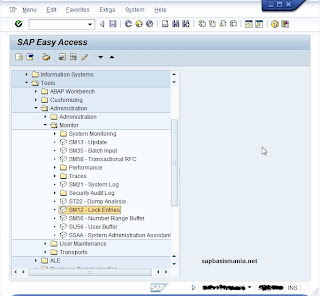
1. To monitor the lock entries go to transaction code SM12
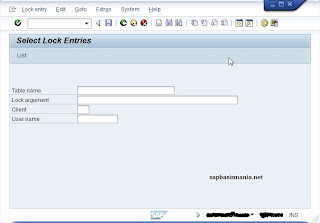
2. Select the client and user name or leave it blank to see all the lock entries.
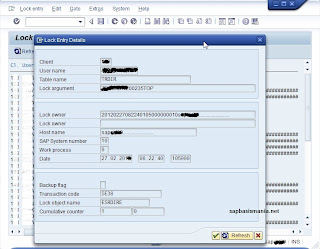
3. You can see detailed information for the lock argument
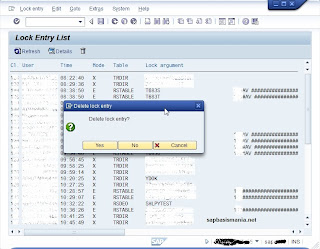
4. Choose one lock entry you want to delete. Be careful before deleting lock entry, make sure it's not used by any processes.
1. To monitor the lock entries go to transaction code SM12

2. Select the client and user name or leave it blank to see all the lock entries.

3. You can see detailed information for the lock argument

4. Choose one lock entry you want to delete. Be careful before deleting lock entry, make sure it's not used by any processes.


